Template 語法
Template 語法({{ }})就像 Word 的合併列印:先寫好一段罐頭文字,中間挖幾個空格放變數名(用雙大括號框起來),平台執行時會把每個空格換成真正的值。例如「親愛的 {{ 病人姓名 }},提醒您 {{ 看診日期 }} 的回診…」。
想讓 AI(大型語言模型)讀到動態內容?那不是這頁
這頁的 {{ }} 主要給 Text 任務(文字) 用。如果要做的是「把使用者的問題等動態內容帶進 AI 的提示詞」,目前平台的大型語言模型步驟走的是 JSONPath 語法(打開欄位的「JSONPath」開關),不是 {{ }}。先確認需要的是哪一種,再往下讀,才不會用錯。
在畫面上怎麼做
{{ }} 樣板主要用在「文字」任務。打開該任務的設定面板,會看到上下兩個欄位:「樣板」寫那段帶 {{ }} 的罐頭文字,「樣板變數」則是一張表格,把每個 {{ }} 對應到要帶入的值。
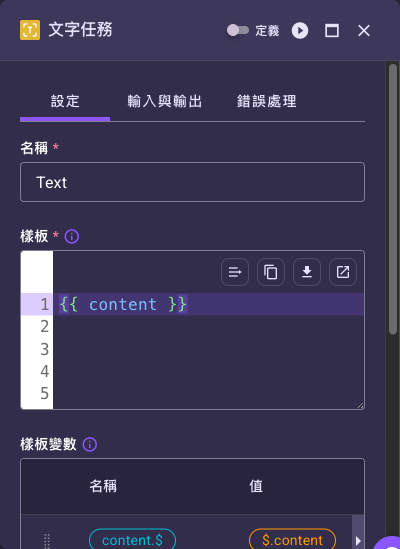
逐步這樣做(表格與那顆紫色按鈕的長相見通用介面元件 — 表格的新增列按鈕):
- 在「樣板」欄位寫好帶
{{ }}的文字。表格不會自動跟著長出對應的列。 - 點「樣板變數」表格下方中央的紫色 ,跳出該列的設定小視窗(之後點該列的鉛筆再打開時,視窗標題會寫「編輯樣板變數」)。
- 「名稱」填
{{ }}中間那個變數名(例如name,不用打大括號);「值」填要帶入的內容。 - 值要從前一步的輸出取,就得先把滑鼠移到「值」欄位上、打開浮現的「JSONPath」開關,再點路徑框(或它右側的鉛筆鈕)在「編輯參考路徑」對話框裡填
$.user.name這種路徑;沒開開關的話,填入的路徑會被當成一段固定文字(開關操作見 JSONPath 語法)。 - 按小視窗右上角「儲存」回到表格,重複到樣板裡每個
{{ }}都有一列。上方那張圖就是兩個變數都補好的樣子。
想整包貼 JSON 也可以
把滑鼠移到「樣板變數」上,標題旁會浮出一個「JSON」開關(和「值」欄的「JSONPath」開關一樣是 hover 才出現)。打開它就能改用 JSON 一次貼上整包對應(例如 {"name.$": "$.user.name"}),關掉就回到表格檢視。逐列填或整包貼,兩種都行。
也因為如此,本頁為了說明方便,會把「一組樣板變數」寫成 JSON 物件的樣子——看到 JSON 時請把它讀成「表格裡的一列一列」:鍵去掉 .$ 後綴就是「名稱」欄,值就是「值」欄。表格的「名稱」欄有時會直接顯示成 name.$,那指的還是同一個變數 name,樣板裡仍然寫 {{ name }},不必改。
大型語言模型任務不吃 {{ }}
大型語言模型任務的提示詞走的是「自訂提示詞(純文字)+打開『JSONPath』開關」那一套,沒有 {{ }} 樣板與「樣板變數」這組欄位。要在提示詞裡帶入動態值,請改用 JSONPath 語法;或先用「文字」任務把提示詞組好,再把成品傳給大型語言模型任務。
語法格式
親愛的 {{ patient_name }},

您 {{ appointment_date }} 的看診結果為「{{ diagnosis }}」。
關鍵特性: 變數包含在雙大括號 {{ variable_name }} 中。
基本使用
範例裡的英文只是為了短,中文一樣可以用
下面幾個範例用 Welcome, {{ name }}! 這種英文短句,純粹是為了讓語法一眼看清。樣板內容與變數名稱都可以是中文(例如 親愛的 {{ 姓名 }},您好),平台不限制語言;本頁後面的診所範例就是中文的。
簡單變數替換
Template:
Welcome, {{ name }}!
工作流程輸入:
{
  "name": "Alice"
}
輸出:
Welcome, Alice!
多個變數
Template:
Order #{{ order_id }} for {{ customer_name }} is {{ status }}.
Total: ${{ amount }}
工作流程輸入:
{
  "order_id": "12345",
  "customer_name": "Bob",
  "status": "shipped",
  "amount": "99.99"
}
輸出:
Order #12345 for Bob is shipped.
Total: $99.99
實用範例
範例 1:使用 Text 任務的回診提醒 Email
Text 任務設定:
Template:
親愛的 {{ patient_name }}:

感謝您今日的看診,以下是本次的後續安排。

看診資訊:
- 分診建議科別:{{ department }}
- 醫師診斷:{{ diagnosis }}
- 回診日期:{{ followup_date }}

祝您早日康復,
OO 診所
工作流程輸入:
{
  "patient_name": "王小明",
  "department": "家醫科",
  "diagnosis": "流感",
  "followup_date": "2026-06-23"
}
輸出:
{
  "text": "親愛的 王小明:\n\n感謝您今日的看診,以下是本次的後續安排。\n\n看診資訊:\n- 分診建議科別:家醫科\n- 醫師診斷:流感\n- 回診日期:2026-06-23\n\n祝您早日康復,\nOO 診所"
}
範例 2:動態 Prompt(概念示意)
此範例為概念示意,非大型語言模型步驟的實際操作
以下用 {{ role }}、{{ question }} 的寫法是為了示意「樣板+變數」的概念。但如前面所述,目前平台的大型語言模型步驟內容區塊並沒有 {{ }} +「樣板變數」的入口;要在提示詞裡帶入動態值,實際做法是打開「JSONPath」開關(產生 text.$,見 JSONPath 語法)。若要的是純文字樣板渲染,請改用「文字」任務。
另外,大型語言模型任務沒有叫「System Message」「User Message」的欄位——那是「對話」表格裡「角色」為「系統」/「使用者」的那一列。
示意設定:
「對話」中角色為「系統」的訊息:
你是一位「{{ role }}」,專長是「{{ domain }}」。
請根據病人主訴,建議最合適的就診科別,語氣保持 {{ tone }}。
「對話」中角色為「使用者」的訊息:
{{ question }}

其他資訊:
{{ additional_context }}
工作流程輸入:
{
  "role": "AI 分診助理",
  "domain": "一般內科與家醫科分診",
  "tone": "親切",
  "question": "我頭痛又發燒,該看哪一科?",
  "additional_context": "病人體溫 38.5°C、血壓 120/80。"
}
LLM 收到:
System:
你是一位「AI 分診助理」,專長是「一般內科與家醫科分診」。
請根據病人主訴,建議最合適的就診科別,語氣保持 親切。
User:
我頭痛又發燒,該看哪一科?

其他資訊:
病人體溫 38.5°C、血壓 120/80。
範例 3:結合前一個任務輸出
工作流程設定:
- 大型語言模型任務生成摘要(輸出在
$.LLMActionResult.message——大型語言模型任務底下的欄位叫message,不是text,見 Path Parameters) - Text 任務建立格式化報告
Text 任務 Template:
# Analysis Report

## Summary
{{ summary }}

## Recommendations
Based on the analysis, we recommend:
{{ recommendations }}

## Next Steps
{{ next_steps }}

---
Generated: {{ timestamp }}
「文字」任務的「樣板變數」設定(讀成表格的一列一列):
{
  "summary.$": "$.LLMActionResult.message",
  "recommendations.$": "$.workflow_input.recommendations",
  "next_steps.$": "$.workflow_input.next_steps",
  "timestamp.$": "$.workflow_input.timestamp"
}
注意:「樣板變數」的「值」欄用 JSONPath 從工作流程狀態取值,取到的值再被 {{ }} 代入樣板。
存取巢狀資料
在「樣板變數」中使用 JSONPath
要在樣板中使用巢狀資料,先在「樣板變數」的「值」欄用 JSONPath 把它取出來,樣板裡就只需要引用那個變數名。
工作流程狀態:
{
  "user": {
    "profile": {
      "name": "Alice",
      "email": "alice@example.com"
    }
  }
}
「樣板變數」(名稱 → 值):
{
  "name.$": "$.user.profile.name",
  "email.$": "$.user.profile.email"
}
Template:
User: {{ name }}
Email: {{ email }}
結合其他語法
樣板常和 JSONPath 與外部記憶體語法一起用:
這一節整段都是畫面操作
下面第 1 步的 .%(從變數資源載入樣板)不必手寫定義:把滑鼠移到該欄位上、打開「JSONPath」開關、點唯讀路徑框開啟「編輯參考路徑」對話框,把「來源」改成「變數」,填變數 ID 與 jsonpath 即可,.% 由平台自己產生(見任務通用設定 › 欄位的輸入方式切換與外部記憶體語法)。第 2 步的「樣板」與「樣板變數」同樣是畫面操作。想更單純的話,也可以把樣板文字直接寫在「樣板」欄位裡,不必走變數資源這一段。
範例工作流程:
- 從變數資源載入 Template:
{
  "email_template.%": {
    "type": "variable",
    "id": "var-templates",
    "jsonpath": "$.welcome_email"
  }
}
-
將 Template 傳遞給 Text 任務:
-
「樣板」欄位填
$.load_config.email_template。這個欄位預設是「打什麼就是什麼」的純文字,要讓它當成路徑去取值,得先把滑鼠移到「樣板」上、打開浮現的「JSONPath」開關(和「值」欄那顆同一種),否則填入的$.load_config.email_template會被原字輸出。開關打開後欄位會變成唯讀的路徑框,打字打不進去——點這個框或它右側的 鉛筆鈕,在「編輯參考路徑」對話框裡填路徑再按「儲存」(見任務通用設定)。 -「樣板變數」:{ "name.$": "$.user.name", "company.$": "$.load_config.company_name" }
這樣可以:
- 在變數資源中儲存 Template(
.%) - 從工作流程狀態引用 Template 和資料(
.$) - 使用 Template 語法渲染最終文字(
{{ }})
最佳實踐
保持 Template 可讀性:
- 使用適當的格式和縮排
- 為複雜邏輯新增註解
- 將長 Template 拆分為多個部分
驗證變數存在:
- 確保提供所有 Template 變數
- 對可選值使用 Jinja2 預設值:
{{ optional | default('N/A') }} - 使用不同輸入測試 Template
用於文字內容:
- 電子郵件內容和通知
- 報告生成
- 格式化訊息
- 給大型語言模型的提示詞(注意:LLM 任務的提示詞欄位不吃
{{ }},要動態帶值請走 JSONPath。這裡指的是先用文字任務把提示詞組好,再把成品傳給 LLM 任務)
不要用於結構化資料:
- 對於 JSON/XML 生成或資料整形,改用傳遞任務(Pass)或程式碼(Code)任務
- Template 用於人類可讀的文字
- 避免在 Template 中進行複雜的資料操作
「資料轉換(Transformation)」已棄用
舊版文件可能會推薦「資料轉換(Transformation)」任務來做資料整形,但平台已將它標示為「資料轉換 (已棄用)」。新流程請改用 傳遞任務(Pass) 或 程式碼(Code)任務 來準備/整形資料。
常見錯誤
❌ 在非 Template 欄位中使用 Template 語法
{
  "url": "https://api.example.com/users/{{ user_id }}"  // 錯誤!
}
✅ 對動態欄位使用 JSONPath
{
  "url.$": "$.api_url"  // 正確
}
❌ 忘記提供 Template 變數
Template:
Hello {{ name }}, your balance is {{ balance }}
「樣板變數」(名稱 → 值):
{
  "name.$": "$.user.name"
  // 遺漏 balance!
}
✅ 提供所有變數或使用預設值
{
  "name.$": "$.user.name",
  "balance.$": "$.account.balance"
}
或在 Template 中:
Hello {{ name }}, your balance is {{ balance | default('N/A') }}
❌ Template 中的複雜邏輯
{% if status == 'active' and balance > 1000 and tier == 'premium' %}
  {% for item in recent_purchases %}
    {% if item.category in preferred_categories %}
      ...complex logic...
    {% endif %}
  {% endfor %}
{% endif %}
✅ 先用傳遞 / 程式碼任務準備資料
使用傳遞任務(Pass)或程式碼(Code)任務準備簡化的資料,然後使用簡單的 Template 邏輯。(「資料轉換(Transformation)」已棄用,請改用前述替代。)
何時使用 Template 語法
使用 {{ }} 語法當:
- ✅ 渲染人類可讀的文字
- ✅ 生成電子郵件、報告或通知
- ✅ 用文字任務組好要給大型語言模型的提示詞,再把結果傳給 LLM 任務
- ✅ 建立格式化訊息
不要使用 {{ }} 當:
- ❌ 在任務欄位中引用資料 → 使用 JSONPath 語法
- ❌ 存取持久性設定 → 使用 外部記憶體語法
- ❌ 建構結構化資料 → 使用傳遞任務(Pass)或程式碼(Code)任務(「資料轉換」已棄用)
進階 Jinja2 功能(選讀,不會寫程式可以整段跳過)
這一段不看也不影響樣板的使用
下面是給需要在樣板裡做條件判斷或跑迴圈的人看的。日常的「挖空格、填值」用不到這些,看到覺得吃力就直接跳到相關主題。
這一節屬進階選讀
以下 {% if %}、{% for %}、| upper 等是 Jinja2 模板的程式化語法,對沒有程式背景的使用者門檻較高。新手不需要先學會這些——日常的變數替換用前面的 {{ 變數 }} 就夠了。真的需要條件或迴圈時,建議先做一個最小的例子在平台上實際跑一次確認結果,再逐步加複雜度;不確定時請工程同事協助。
條件渲染
Hello {{ name }},

{% if is_premium %}
Thank you for being a premium member!
{% else %}
Consider upgrading to premium for exclusive benefits.
{% endif %}
迴圈
Your orders:
{% for order in orders %}
- Order #{{ order.id }}: {{ order.status }}
{% endfor %}
過濾器
Name: {{ name | upper }}
Date: {{ date | default('Not specified') }}
Price: {{ price | round(2) }}
注意: 這些進階功能由 Jinja2 支援。
這些片段要貼在哪?怎麼馬上看到結果?
上面三段都是貼在「文字」任務「樣板」欄位裡的內容(就是那個帶行號的多行編輯器),{% %} 用到的變數(is_premium、orders…)一律要在底下的「樣板變數」表格逐列補上,否則會渲染不出來。
要驗證有沒有寫對,不用跑整條流程:點該節點面板右上角的「測試任務」()按鈕就能單獨試跑這一步、馬上看到輸出,見編輯器介面導覽。
相關主題
- JSONPath 語法 - 用於「樣板變數」的「值」欄
- 外部記憶體語法 - 從變數載入 Template
- Text 任務指南 - Template 渲染
- LLM 任務指南:LLM 的提示詞怎麼帶動態值(走 JSONPath,不是
{{ }}) - Pass 任務指南 - 為 Template 準備資料